
Service Profile create by iMaster NCE-FAN NMS
Today I will give example how to Create Service Profile by iMaster NCE-FAN NMS.
Its just example, you need to configure profile by use your VLAN & which port you want to configure which VLAN.
Follow below step by step process:
1. Log in your iMaster NCE-FAN NMS and choose Network Management.
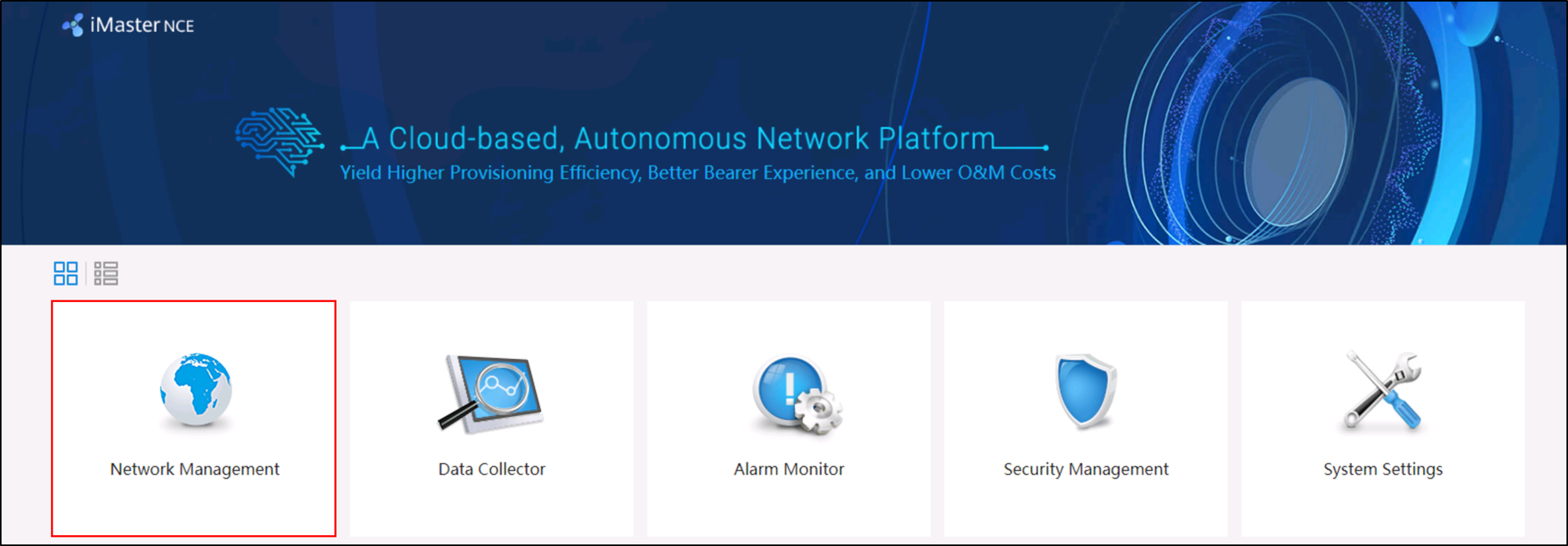
2. Select a Service and click the Access Profile Management tab.
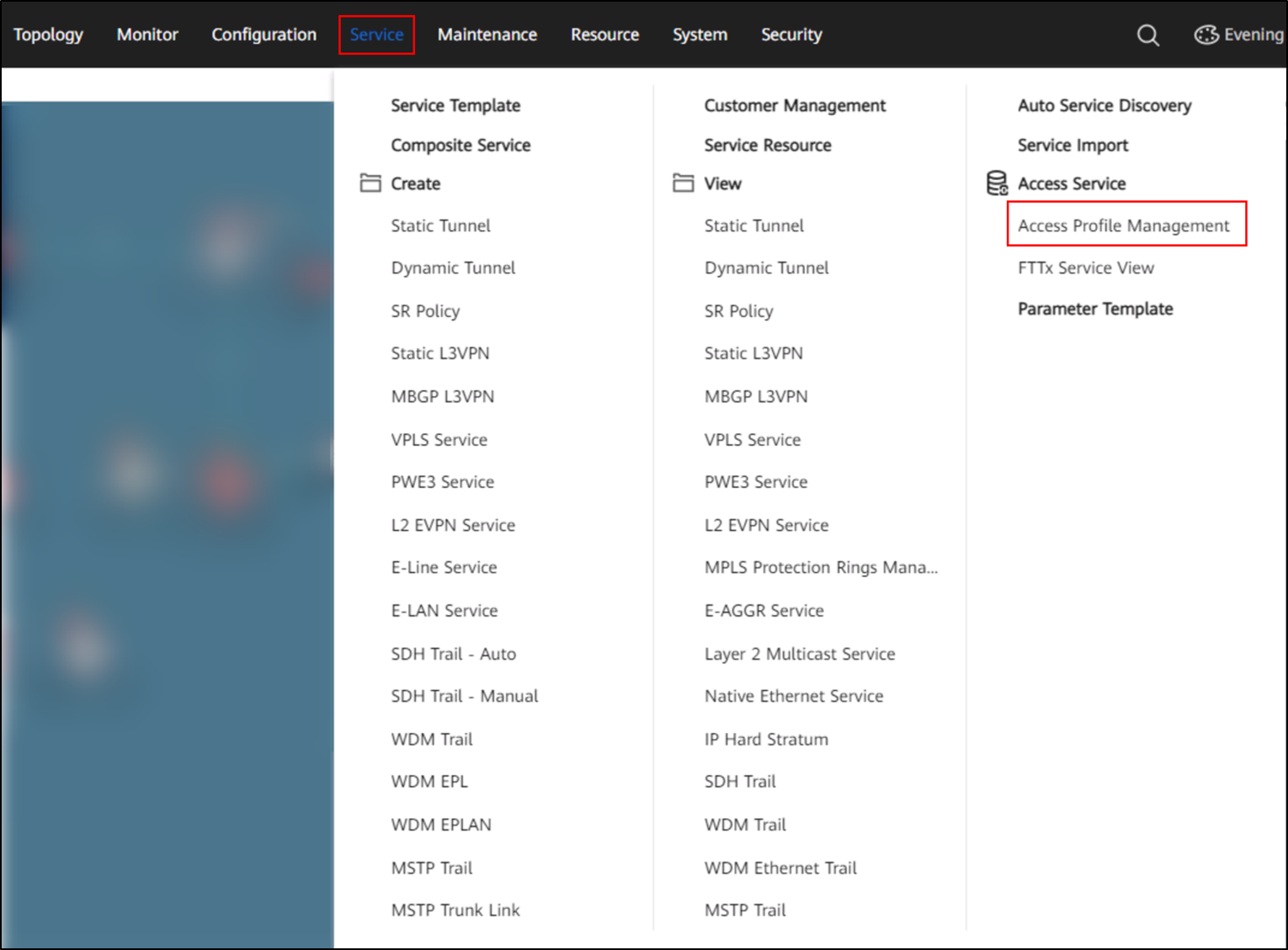
3. On the Access Profile Management tab page, choose PON Profile > GPON Profile.
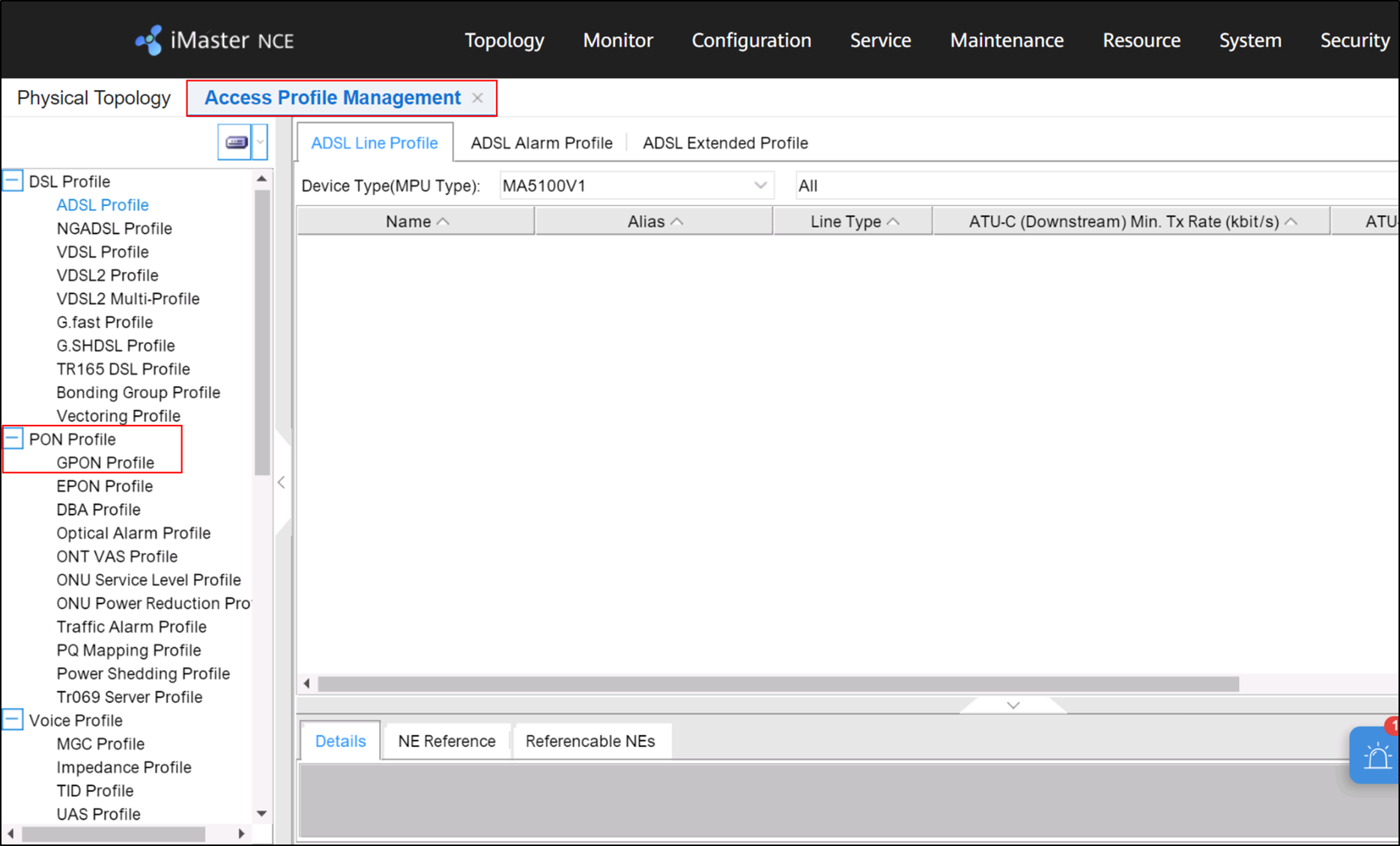
4. Choose GPON Service Profile and Right-click Add Global Profile from the shortcut menu.
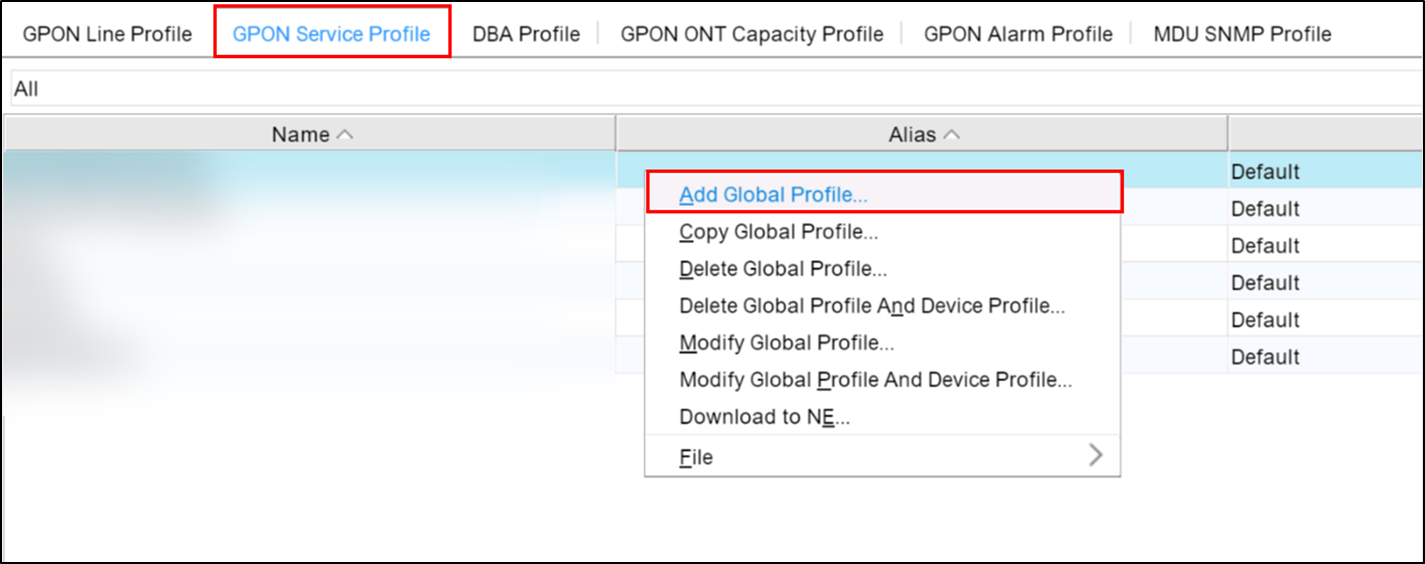
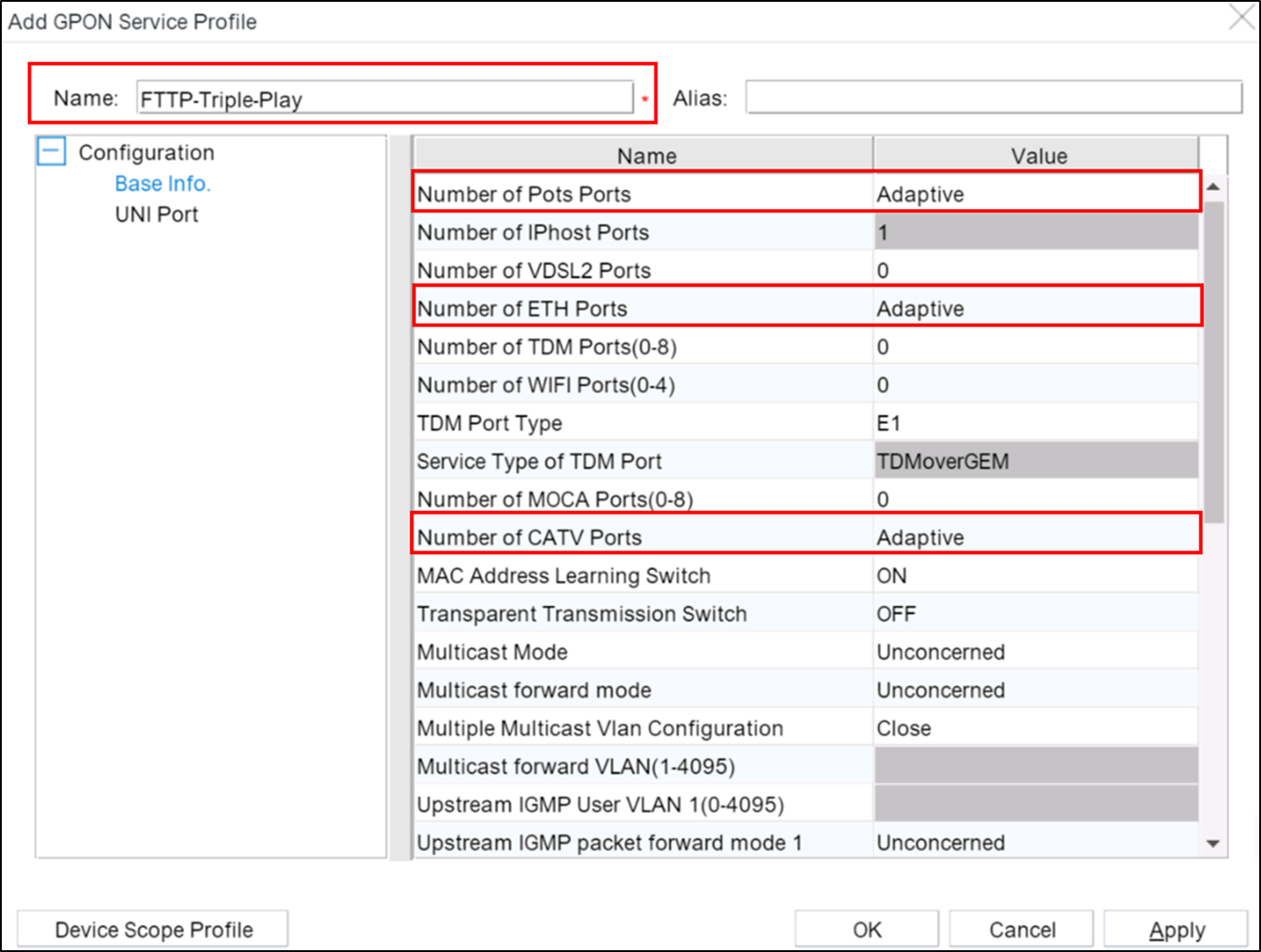
5. In the Add GPON Service Profile dialog box, set the Number of POST Ports, Number of Ethernet Ports, and Number of CATV Ports to Adaptive.
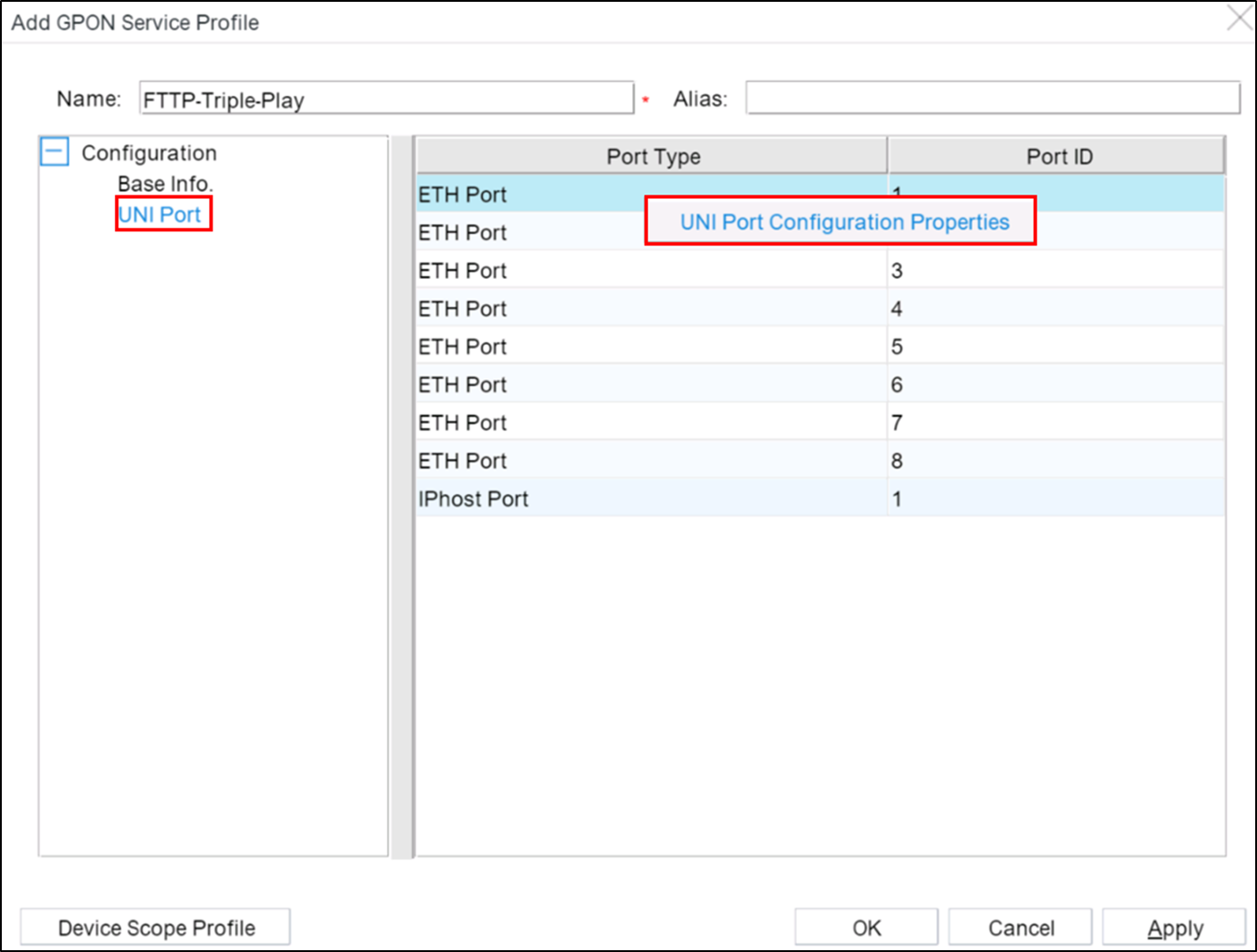
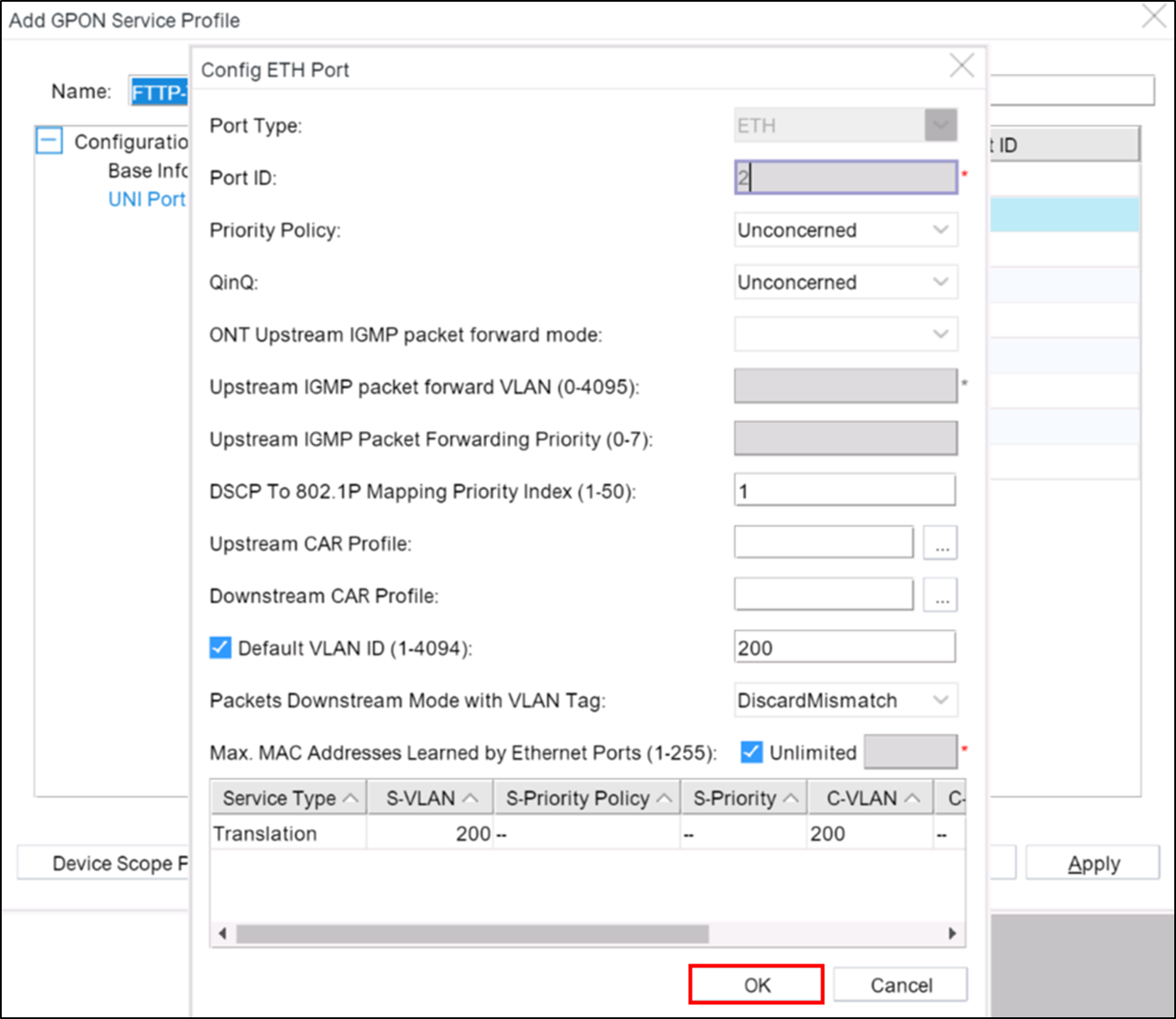
6. Click UNI Port, right-click ETH Port1, and choose UNI Port Configuration Properties from the shortcut menu.
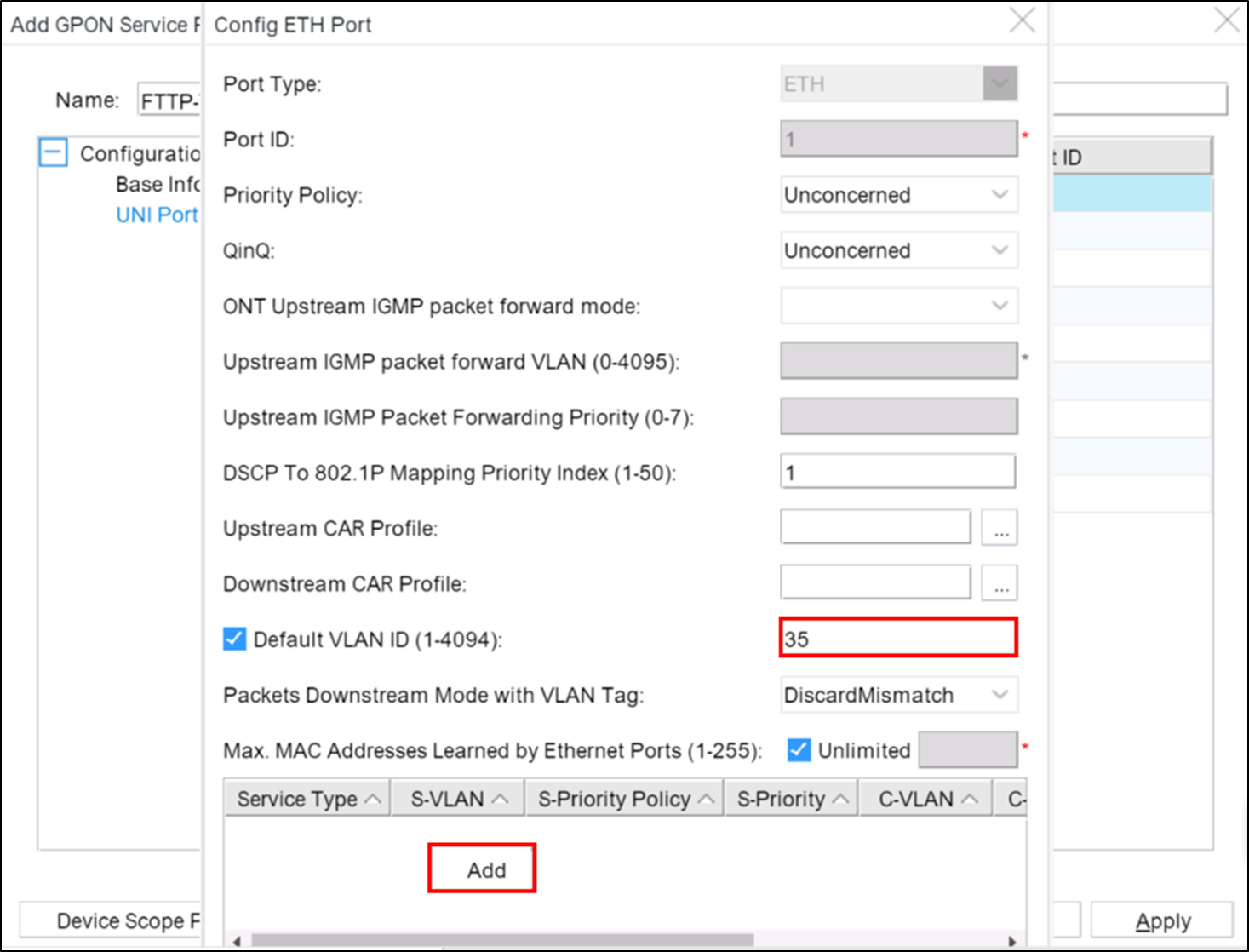
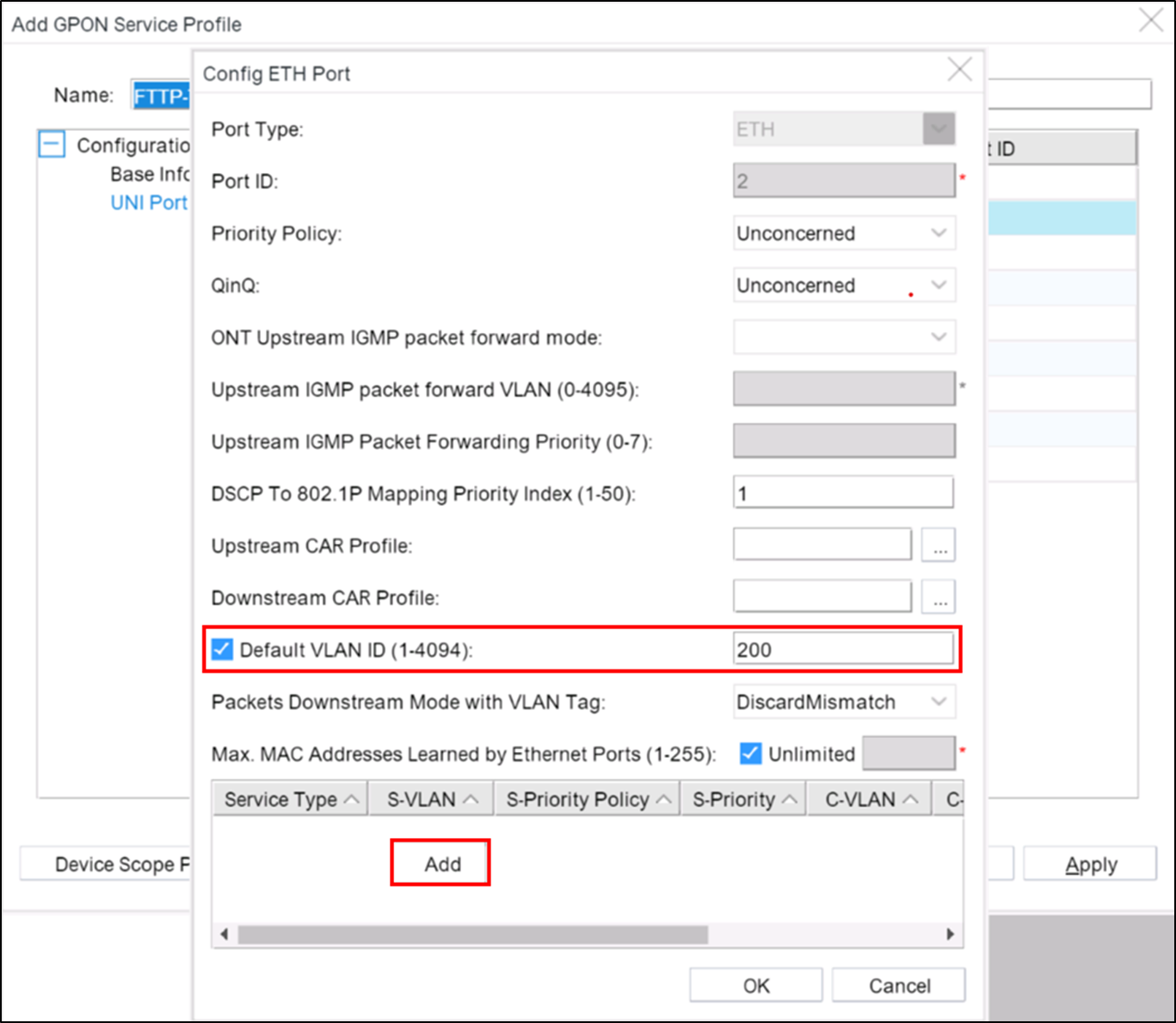
7. In the Config ETH Port dialog box, configure the Default VLAN ID(the parameter value is the same as the C-VLAN of the HSI service), click the blank area, and click Add.
8. In the Add VLAN Switch dialog box, configure S-VLAN and C-VLAN.
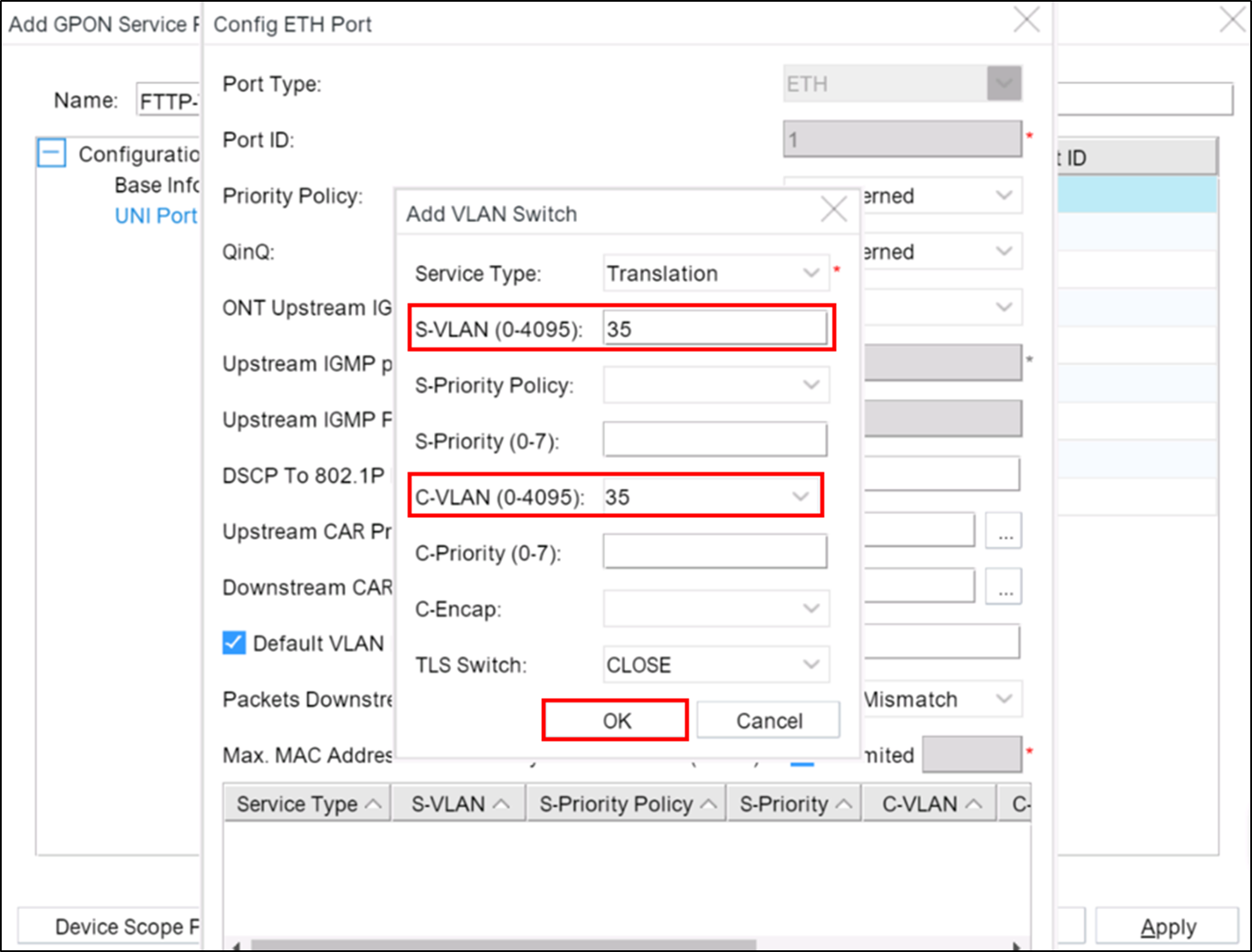
Note: When S-VLAN = C-VLAN, that is, the LAN1 port of the ONT does not perform VLAN translation,
9. Click OK.
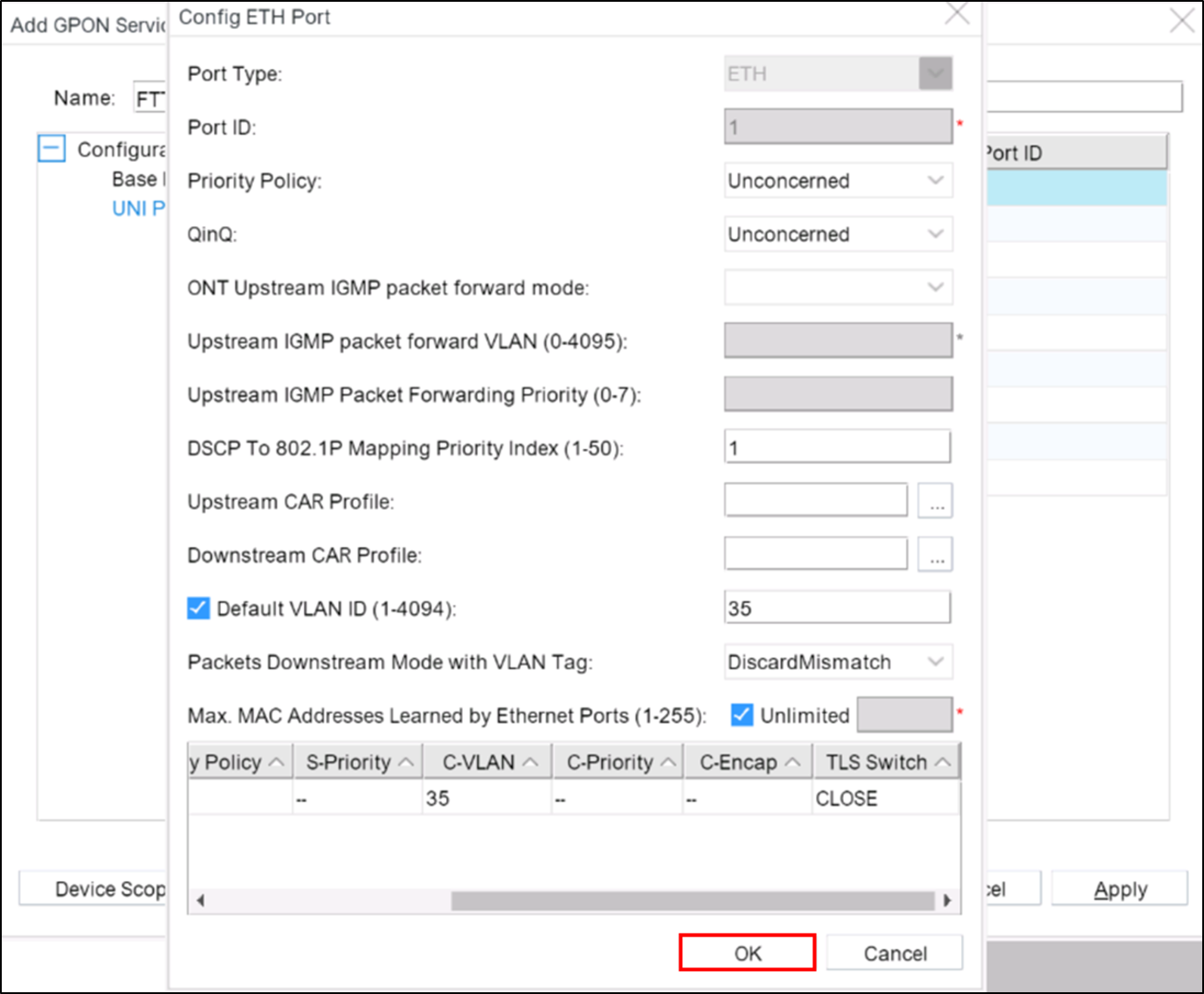
10. Right-click ETH Port2, and choose UNI Port Configuration Properties from the shortcut menu.
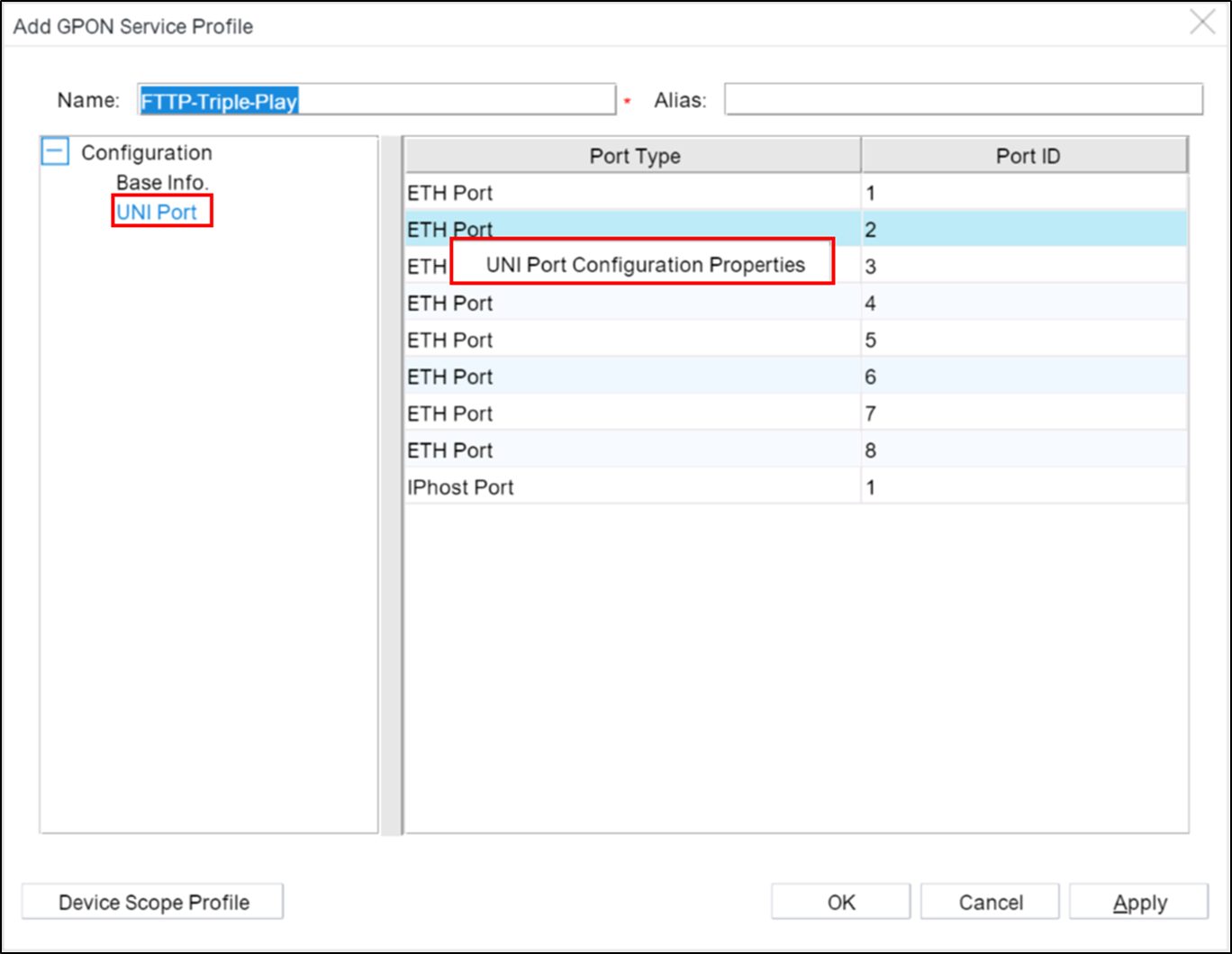
11. In the Config ETH Port dialog box, configure the Default VLAN ID(the parameter value is the same as the C-VLAN of the IPTV service), click the blank area, and click Add.
12. In the Add VLAN Switch dialog box, configure S-VLAN and C-VLAN.
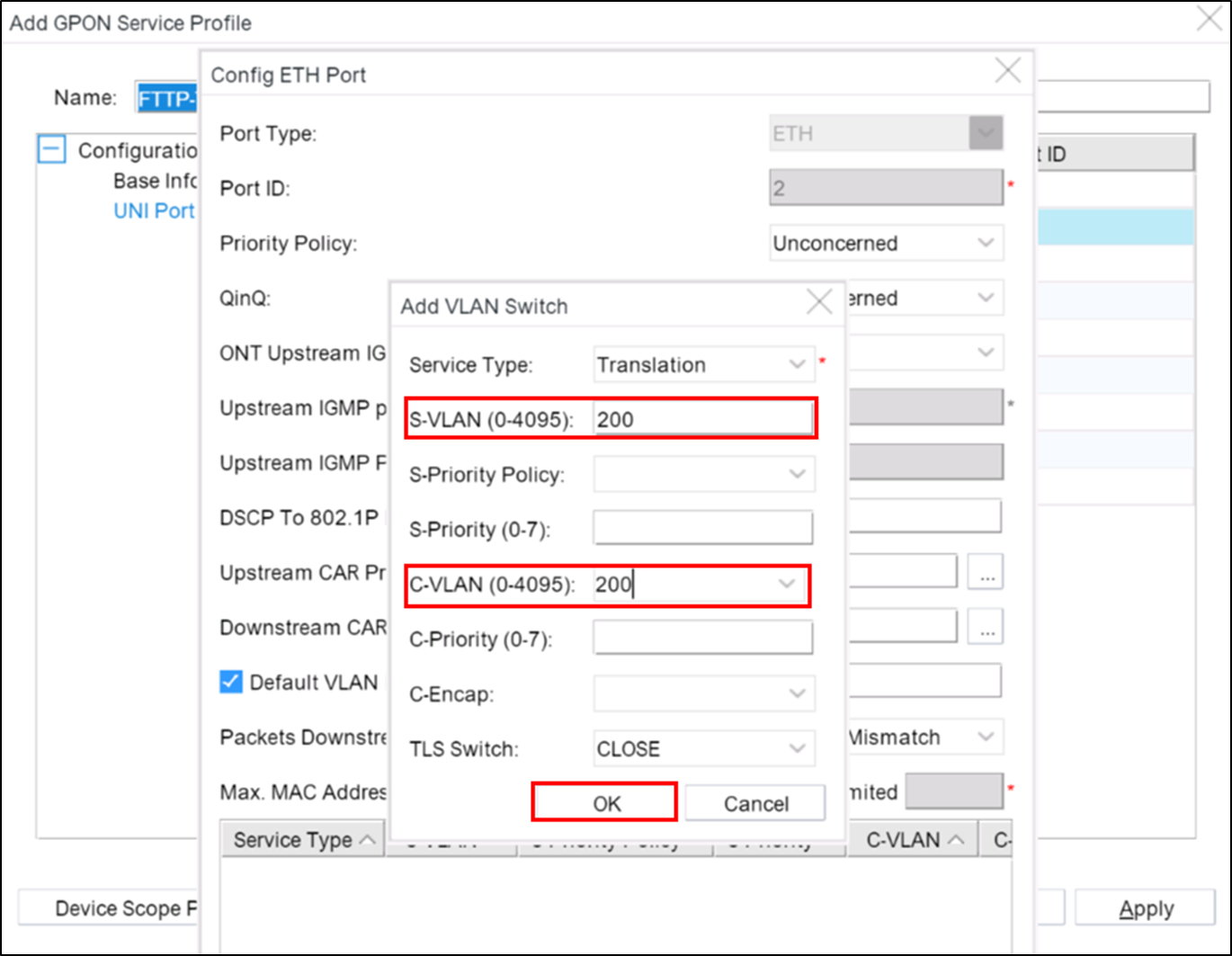
13. Click OK.
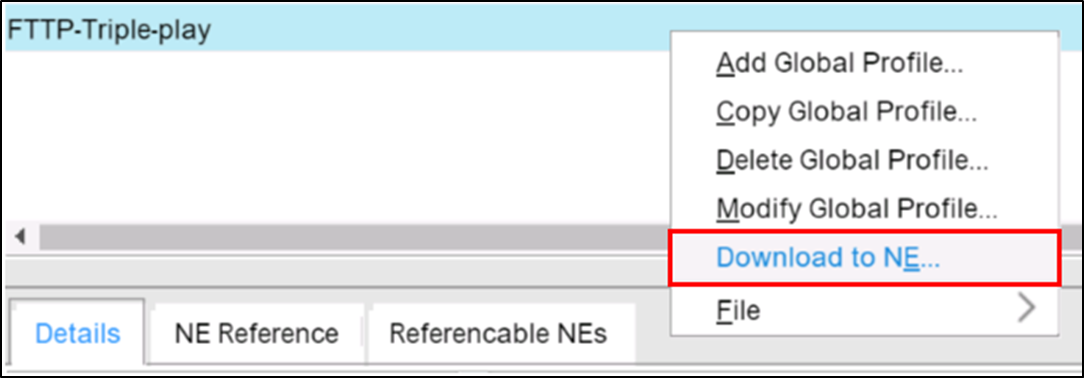
14. Right-click the created GPON Service Profile and click Download to NE.
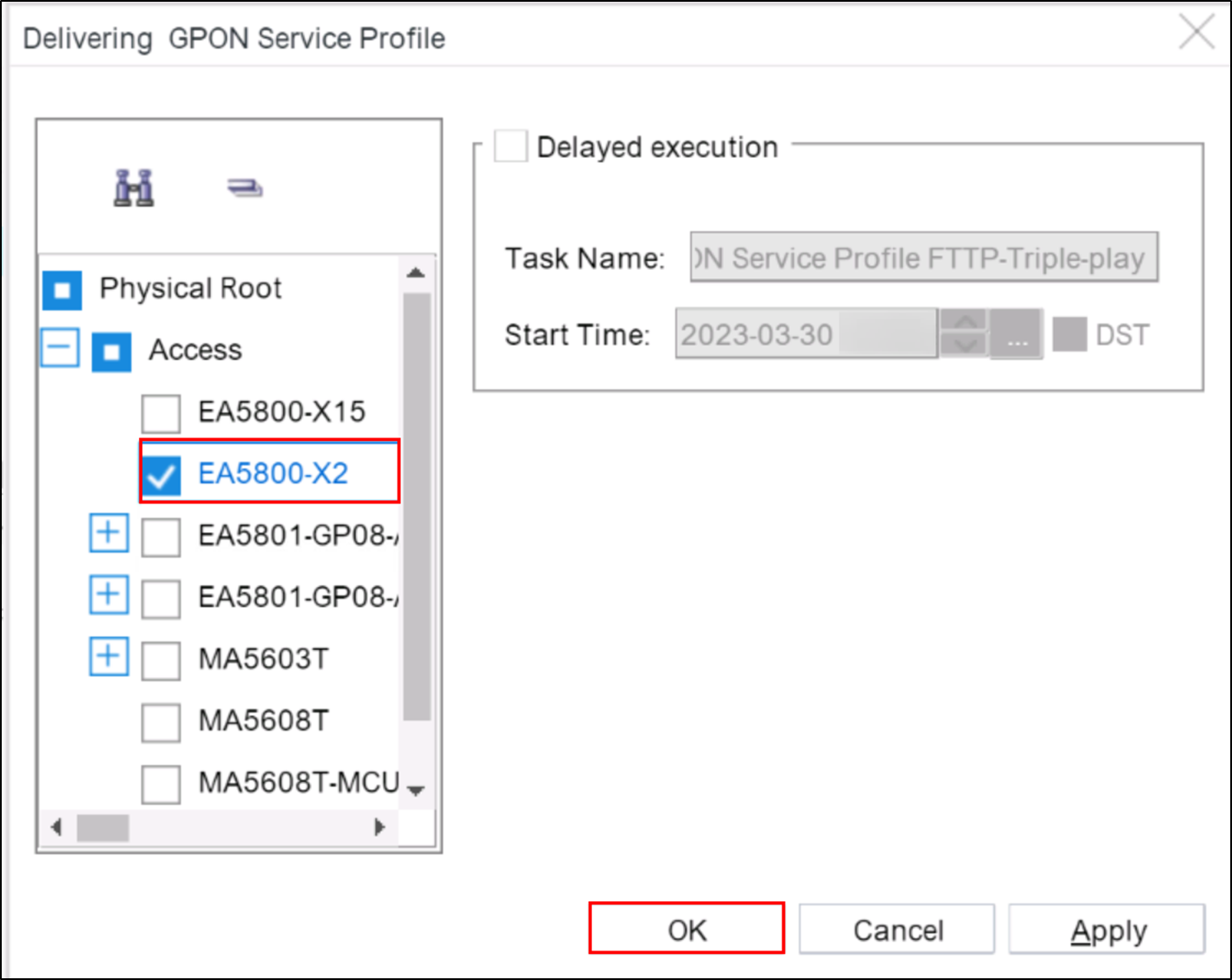
15. In the Delivering GPON Service Profile dialog box, bind the device to be applied, and then click OK.
16. In the Task Progress dialog box, the result is displayed.
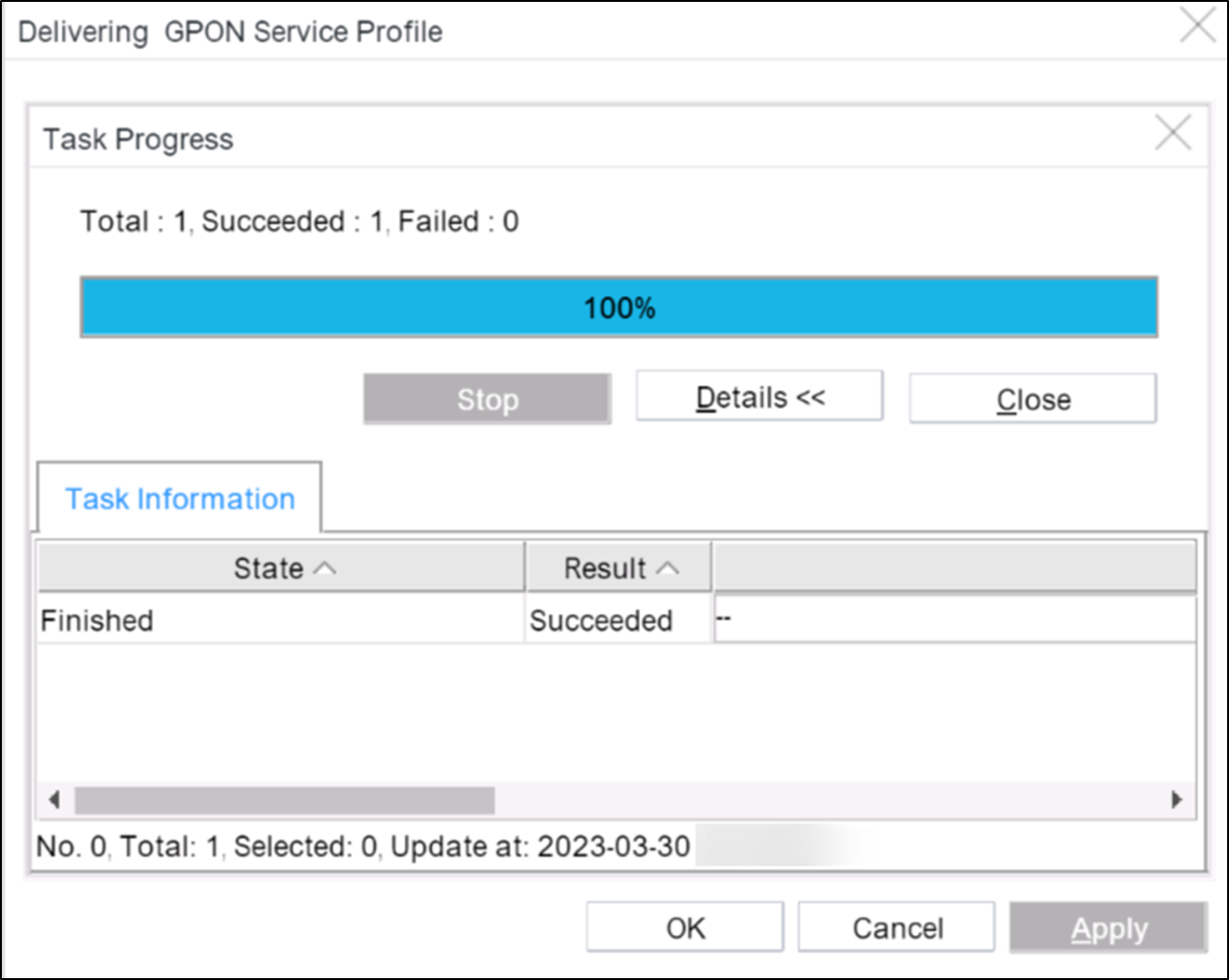
Finally GPON Service Profile has been configured & you will get that profile info in OLT CLI.
You can check below link.
How to configure Line Profile by NCE-FAN NMS
GPON Profile configure example in YouTube.
