PHYHOME OLT Configuration FH-Net FHL1012B

PHYHOME OLT Configuration FH-Net FHL1012B/016B/040B

[boxads]

Hi everybody ! Today i will show you how to PHYHOME OLT Configuration in FH-Net FHL1012B/016B/040B series OLT.

Two way we can configure this OLT, one is CLI mode another is NMS GUI mode. Today i will show you PHYHOME OLT Configuration in cli mode.

Step 1.Log in

You may login to the FHL1012B by serial port or by Ethernet cable. We suggest use secureCRT tool to manage, this tool support serial management and Telnet management

1.1.Login to the OLT by the serial port

Connect the serial cable the the console port, setup the Baud rate to 9600,and open the console port, Access the OLT by the username/passowrd:admin/admin. The passowrd of enable mode is “admin” also.
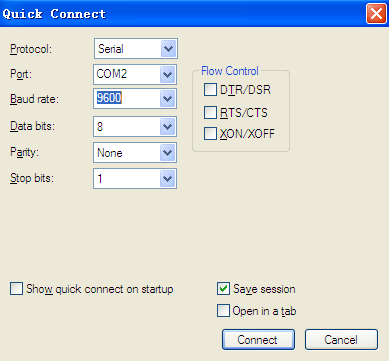
console

1.2. Log in by Telnet

The default IP address of the FHL1012B is 192.168.100.2.

Connect the Ethernet cable to the NMS port, configure the static IP of your PC to 192.168.100.100,and then start a PING test to see if the 192.168.100.2 is reachable.

Set up a telnet session to 192.168.100.2 and input the username “admin”, password “admin” to access the OLT.

Step 2 Enable the PON port and uplink port.

Before provisioning the services, please make sure the PON port and uplink port is active

2.1.  Enable the uplink port

# system   —-go to the system mode
system#
system# configure ——go to the system->configuration mode, to configure the uplink port
system\configure#
system\configure# uplink on 6:1   —–enable the uplink port 6:1
system\configure# uplink on 6:2
system\configure# uplink on 6:3
system\configure# uplink on 6:4
system\configure# uplink mode  fiber 6:1 ——-set the uplink mode to fiber
system\configure# uplink mode  sgmii 6:2 ——-set the uplink mode to coper

2.2 Enable the PON port.

system\configure# pon on 1 1  —–Enable the PON port of slot 1, port 1.
system\configure# pon on 1 2
system\configure# pon on 1 3
system\configure# pon on 1 4
system\configure# pon on 2 1
system\configure# pon on 2 2
system\configure# pon on 2 3
system\configure# pon on 2 4

Read more

Configure traffic statistics ZTE OLT

Configure traffic statistics ZTE OLT

[boxads]

Today i will discuss how to Configure traffic statistics ZTE OLT.

Prerequisites:

  • Make sure that the network device works normally.
  • Log in to the ZXA10 C220 through HyperTerminal or Telnet.

Context:

Traffic statistics is used to collect statistics on the packets of specific service flows. It counts quality and bytes of the packets arrived at the ingress port.

To configure the traffic statistics, perform the following steps:

Step-1. Use the configure terminal command to enter global configuration mode.
Step-2. Use the acl command to configure ACL.
Step-3. Use the rule command to configure ACL rule.
Step-4. Use the traffic-statistics in command to configure traffic statistics.
Step-5. Use the interface command to enter interface configuration mode.
Step-6. Use the ip access-group command to apply the ACL to port.

Read more

Configure Traffic Mirroring ZTE OLT

Configure Traffic Mirroring ZTE OLT

[boxads]

Today i will discuss how to Configure Traffic Mirroring ZTE OLT.

Prerequisites:

  • Make sure that the network device works normally.
  • Log in to the ZXA10 C220 through HyperTerminal or Telnet.

Context:

Traffic mirroring is to mirror traffic to assigned CPU or port in order to analyze and monitor packets.

To configure the traffic mirroring, perform the following steps:

Step-1. Use the configure terminal command to enter global configuration mode.
Step-2. Use the acl command to configure ACL.
Step-3. Use the rule command to configure ACL rule.
Step-4. Use the traffic-mirror in command to configure traffic mirroring.
Step-5. Use the interface command to enter interface configuration mode.
Step-6. Use the ip access-group command to apply the ACL to port.

Read more

Configure redirection ZTE OLT

Configure redirection ZTE OLT

[boxads]

Today i will discuss how to Configure redirection ZTE OLT.

Prerequisites:

  • Make sure that the network device works normally.
  • Log in to the ZXA10 C220 through HyperTerminal or Telnet.

Context:

Redirection modifies egress direction of packet according to traffic classification. The direction may be next hop, CPU or interface.

To configure the redirection, perform the following steps:

Step-1. Use the configure terminal command to enter global configuration mode.
Step-2. Use the acl command to configure ACL.
Step-3. Use the rule command to configure ACL rule.
Step-4. Use the redirect in command to configure redirection.
Step-5. Use the interface command to enter interface configuration mode.
Step-6. Use the ip access-group command to apply the ACL to port.

Read more

Queue Scheduling Configure ZTE OLT

Queue Scheduling Configure ZTE OLT

[boxads]

Today i will show how to Queue Scheduling Configure ZTE OLT.

Prerequisites:

  • Make sure that the network device works normally.
  • Log in to the ZXA10 C220 through HyperTerminal or Telnet.

Context:

Each physical port of the ZXA10 C220 supports eight (0 – 7) output queues, which are called CoS queues. The device performs operations on the output queues on the entry port according to the CoS queues corresponding to the packet 802.1p. When congestion occurs on the network, multiple packets may compete for one resource. Queue scheduling can solve this problem.

On the network side, the ZXA10 C220 supports three queue scheduling modes:

  • Fair–queue
  • SP
  • WRR

To configure the queue scheduling, perform the following steps:

Step-1. Use the configure terminal command to enter global configuration mode.
Step-2. Use the queue-mode command to configure network side queue schedule mode.

Read more

Priority Mark Configure ZTE ZXA10 C220 OLT

Priority Mark Configure ZTE ZXA10 C220 OLT

[boxads]

Today i will show how to Priority Mark Configure ZTE ZXA10 C220 OLT.

Prerequisites:

  • Make sure network device works normally.
  • Log in to the ZXA10 C220 through HyperTerminal or Telnet.

Context:

Priority mark is used to allocate priority to certain packets according to traffic classification.
It supports the following operations:

  • Modify CoS queue and 802.1p value.
  • Modify CoS queue but not 802.1p value.
  • Modify DSCP value.
  • Modify drop precedence.

To configure the priority mark, perform the following steps:

Step-1. Use the configure terminal command to enter global configuration mode.
Step-2. Use the acl command to configure ACL.
Step-3. Use the rule command to configure ACL rule.
Step-4. Use the priority-mark in command to configure priority mark.
Step-5. Use the interface command to enter interface configuration mode.
Step-6. Use the ip access-group command to apply ACL to port.

Read more