Fiberhome GPON OLT AN5516-04

Fiberhome GPON OLT AN5516-04

[boxads]

Today i will discuss about Fiberhome GPON OLT AN5516-04 model.

Fiberhome GPON OLT AN5516-04 is a Mini 2U GPON OLT, with 8~16 PON ports (1~2 GC8B), which is suitable for S&M FTTH project. It compliant with ITU-TG.984.x GPON technology standard which with high bandwidth 2.48G/1.24G; It support hot- swappable load-sharing AC/DC power modules design makes AN5516-04 easy to fit in any chassis and outdoor cabinet.

Fiberhome GPON OLT AN5516-04

Read more

PHYHOME OLT Frequently used Commands

PHYHOME OLT Frequently used Commands

Today i will discuss about PHYHOME OLT Frequently used Commands.

Note:FHL1012B Common command line:

1. Create In-band Vlan:
maintenance\configure# manage vlan <vid> <portlist> [untagged|tagged]

2. Config In-band manage IP address:
maintenance\configure#manage ip <A.B.C.D/M> {<A.B.C.D>}

3. Show In-band management info:
maintenance# display manage vlan

4. In-band manage or delete IP Vlan:
maintenance\configure# manage vlan delete

5. Add users and config password:
maintenance\configure#user add <username> <login_password>

6. Delete users:
maintenance\configure# user delete <username>

7. Config users permission:
maintenance\configure#user role admin <username> <enable_password>

8.Show all users on the devices:
# who

Read more

PHYHOME OLT Configuration by FHN100D NMS

PHYHOME OLT Configuration by FHN100D NMS

[boxads]

Hi everybody ! Today i will show you how to PHYHOME OLT Configuration in FH-Net FHL1012B/016B/040B series OLT.

Two way we can configure this OLT, one is CLI mode another is NMS GUI mode. Today i will show you PHYHOME OLT Configuration in NMS GUI mode.

Quick Start for FHN100D_FHL1012B

Step-1. install NMS

PHYHOME NMS

Install to windows 7 system. Windows 10 is not support well

Step-2. power on the FHL1012B,connect the console, and login to the system

Username: admin       /*default user name is admin*/
Password: *****       /*default password is admin*/
> enable
Password: *****       /*input admin go to the enable mode*/
#

Step-3. connect the cable/fiber to uplink port(take first uplink port as an example)
Then check the uplink status:

# system
system# display uplink configuration all
port-idx port-state link-state auto-neg  speed duplex learning flow-control pvid prien privalue port-mode
6:1 enabled up       on 100M   full enabled  Off 4088 off 0 sgmii
6:2 enabled down on 1000M full enabled  Off 4088 off 0 sgmii
6:3 enabled down on 1000M full enabled  Off 4088 off 0 sgmii
6:4 enabled down on 1000M full enabled  Off 4088 off 0 sgmii
6:5 enabled down on 1000M full enabled  Off 4088 off 0 optical

Read more

PHYHOME OLT Configuration FH-Net FHL1012B

PHYHOME OLT Configuration FH-Net FHL1012B/016B/040B

[boxads]

Hi everybody ! Today i will show you how to PHYHOME OLT Configuration in FH-Net FHL1012B/016B/040B series OLT.

Two way we can configure this OLT, one is CLI mode another is NMS GUI mode. Today i will show you PHYHOME OLT Configuration in cli mode.

Step 1.Log in

You may login to the FHL1012B by serial port or by Ethernet cable. We suggest use secureCRT tool to manage, this tool support serial management and Telnet management

1.1.Login to the OLT by the serial port

Connect the serial cable the the console port, setup the Baud rate to 9600,and open the console port, Access the OLT by the username/passowrd:admin/admin. The passowrd of enable mode is “admin” also.
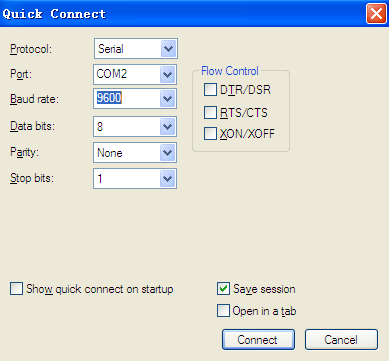
console

1.2. Log in by Telnet

The default IP address of the FHL1012B is 192.168.100.2.

Connect the Ethernet cable to the NMS port, configure the static IP of your PC to 192.168.100.100,and then start a PING test to see if the 192.168.100.2 is reachable.

Set up a telnet session to 192.168.100.2 and input the username “admin”, password “admin” to access the OLT.

Step 2 Enable the PON port and uplink port.

Before provisioning the services, please make sure the PON port and uplink port is active

2.1.  Enable the uplink port

# system   —-go to the system mode
system#
system# configure ——go to the system->configuration mode, to configure the uplink port
system\configure#
system\configure# uplink on 6:1   —–enable the uplink port 6:1
system\configure# uplink on 6:2
system\configure# uplink on 6:3
system\configure# uplink on 6:4
system\configure# uplink mode  fiber 6:1 ——-set the uplink mode to fiber
system\configure# uplink mode  sgmii 6:2 ——-set the uplink mode to coper

2.2 Enable the PON port.

system\configure# pon on 1 1  —–Enable the PON port of slot 1, port 1.
system\configure# pon on 1 2
system\configure# pon on 1 3
system\configure# pon on 1 4
system\configure# pon on 2 1
system\configure# pon on 2 2
system\configure# pon on 2 3
system\configure# pon on 2 4

Read more

Configure traffic statistics ZTE OLT

Configure traffic statistics ZTE OLT

[boxads]

Today i will discuss how to Configure traffic statistics ZTE OLT.

Prerequisites:

  • Make sure that the network device works normally.
  • Log in to the ZXA10 C220 through HyperTerminal or Telnet.

Context:

Traffic statistics is used to collect statistics on the packets of specific service flows. It counts quality and bytes of the packets arrived at the ingress port.

To configure the traffic statistics, perform the following steps:

Step-1. Use the configure terminal command to enter global configuration mode.
Step-2. Use the acl command to configure ACL.
Step-3. Use the rule command to configure ACL rule.
Step-4. Use the traffic-statistics in command to configure traffic statistics.
Step-5. Use the interface command to enter interface configuration mode.
Step-6. Use the ip access-group command to apply the ACL to port.

Read more

Configure Traffic Mirroring ZTE OLT

Configure Traffic Mirroring ZTE OLT

[boxads]

Today i will discuss how to Configure Traffic Mirroring ZTE OLT.

Prerequisites:

  • Make sure that the network device works normally.
  • Log in to the ZXA10 C220 through HyperTerminal or Telnet.

Context:

Traffic mirroring is to mirror traffic to assigned CPU or port in order to analyze and monitor packets.

To configure the traffic mirroring, perform the following steps:

Step-1. Use the configure terminal command to enter global configuration mode.
Step-2. Use the acl command to configure ACL.
Step-3. Use the rule command to configure ACL rule.
Step-4. Use the traffic-mirror in command to configure traffic mirroring.
Step-5. Use the interface command to enter interface configuration mode.
Step-6. Use the ip access-group command to apply the ACL to port.

Read more