H.248 VoIP Service Configure Via Web Page

H.248 VoIP Service Configure Via Web Page

[boxads]

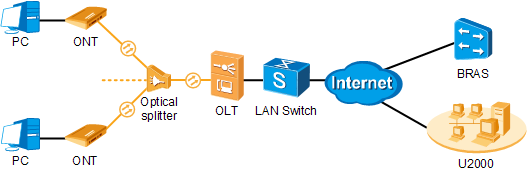
Today i will discuss how H.248 VoIP Service Configure Via Web Page.  The OLT is connected to the remote ONT through a GPON port to provide users with the IP-based high-quality and low-cost VoIP service.

Prerequisites:

  • The interface data and POTS user configuration data corresponding to the MG interface have been configured on the MGC.
  • The OLT has been connected to the MGC. The OLT can ping the IP address of the MGC server successfully.
  • The ONT has been added to the OLT. For details, see Adding an ONT to an OLT.
  • Different voice services require different ONT software versions. Before the configuration, ensure that the current ONT software version supports H.248. For details, see relevant ONT manuals.

Data Plan:

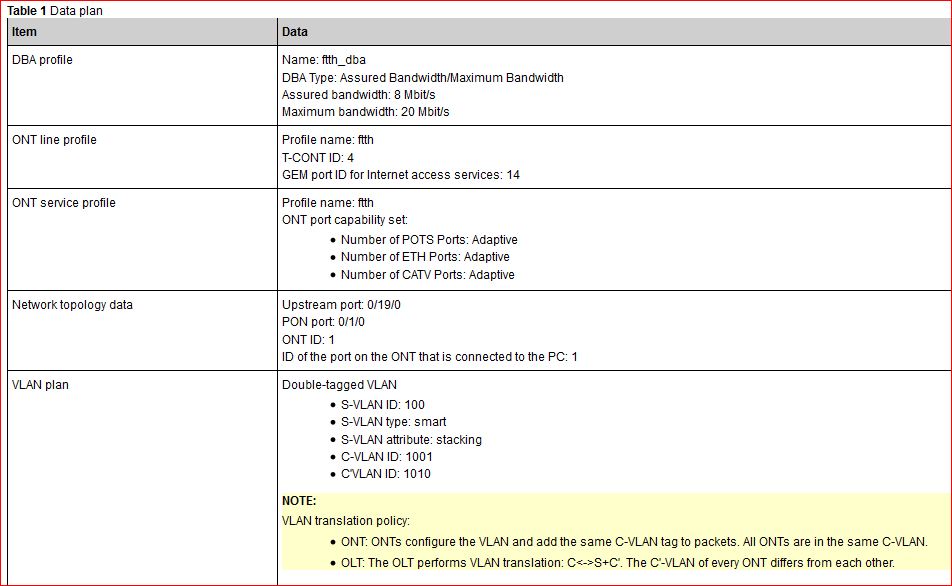
Data Plan for H.248 VoIP Service Configure

H.248 VoIP Service Configure Procedure:

1.Configure a traffic profile.

Run the display traffic table ip command to query the existing traffic profiles in the system. If the existing traffic profiles in the system do not meet the requirements, run the traffic table ip command to add a traffic profile.

Set the profile name to ftth_voip and do not limit the upstream and downstream rates. Set the priority to 5 and packets are scheduled according to the priority carried.

Gponsolution(config)#traffic table ip name ftth_voip cir off priority 5 priority-policy local-setting

2. Configure the mapping relationship between a GEM port and a VLAN.

The service flow of user VLAN 40 is mapped to GEM port 12 in the ONT line profile.

Gponsolution(config)#ont-lineprofile gpon profile-name ftth
Gponsolution(config-gpon-lineprofile-1)#gem mapping 12 2 vlan 40
Gponsolution(config-gpon-lineprofile-1)#commit
Gponsolution(config-gpon-lineprofile-1)#quit

Read more

Huawei OLT Basic Configuration/Initial Setup

Huawei OLT Basic Configuration/Initial Setup

Today I will discuss how to initially Configure Huawei OLT / Huawei OLT Basic Configuration. So let’s go our configuration part. Here i use  Huawei SmartAX MA5608T GPON OLT. At first connect PC/Laptop via console port & open terminal software, such Xshell, Putty, ZOC etc…..Then enable and go to config mode & follow bellow step.

Huawei OLT default user name: root  and Password admin or admin123

OLT Eth port default IP: 10.11.104.2/24  if you want to access by UTP cable then need to put 10.11.104.1/24 IP in your Laptop/PC.

Add Hostname/Device Name:

huawei(config)#sysname  Gponsolution

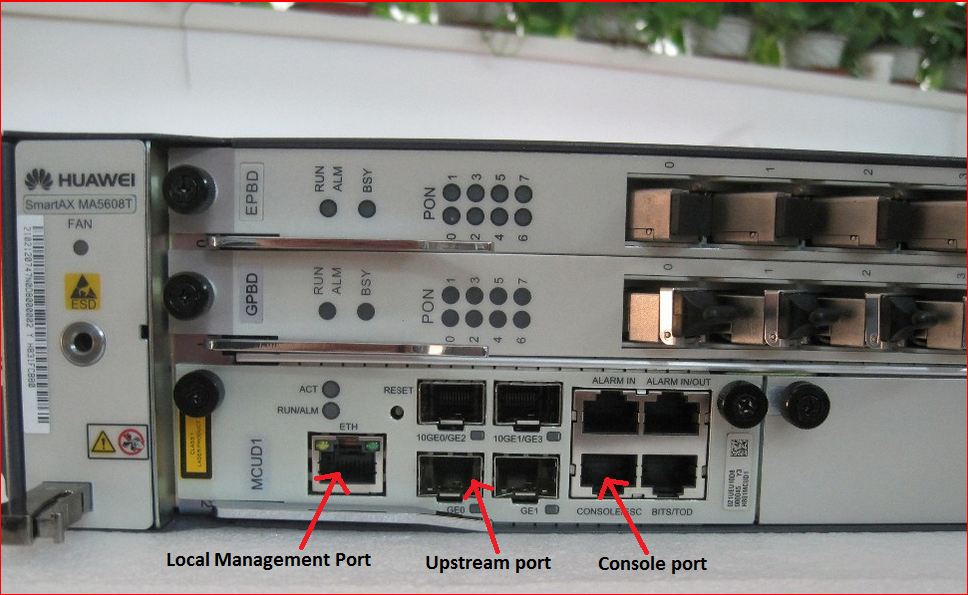
Add Management IP for local access by MCUD board ETH port:

This is for your local login port, it is need for firmware upgrade & locally login, you did not get internet through this ETH port & not use like as Upstream port.

Huawei OLT Basic Configuration Initial Setup MA5608T

Gponsolution(config)#interface meth0
Gponsolution(config-if-meth0)#ip address 1.1.1.2 255.255.255.0

Management Vlan Add & assign OLT IP for remote access via Telnet:

Gponsolution(config)#vlan 10 smart
Gponsolution(config)#interface vlanif10
Gponsolution(config-if-vlanif10)#ip address 192.168.100.10 255.255.255.0
Gponsolution(config-if-vlanif10)#quit

Management Vlan Pass & Description in upstream interface:

Here Management VLAN is 10 & upstream MCUD port is GE0. by-default GE0 port is Trunk port so your uplink device port must be Trunk port.

Gponsolution(config)#port vlan 10 0/2 0

Gponsolution(config)#port desc 0/2/0 description “Uplink-with…….”

GPON Board/Card Add:

In first time when you power on OLT then you see all GPON board is Auto_find mode, you can add this board two way.

Gponsolution(config)#board confirm 0

Huawei OLT Basic Configuration MA5608T

or manually Add by bellow command

Gponsolution(config)#board add 0/0 H805GPFD
Gponsolution(config)#board add 0/1 H806GPBD

Read more

H.248-based Voice Service Configure Via CLI

H.248-based Voice Service Configure Via CLI

[boxads]

The OLT manages ONTs and applies VoIP configurations to the ONT using the OMCI protocol. This topic describes how to configure the H.248-based voice service.

Prerequisites:

  • The interface data and POTS user configuration data corresponding to the MG interface have been configured on the MGC.
  • The OLT has been connected to the MGC. The OLT can ping the IP address of the MGC server successfully.
  • The ONT has been added to the OLT. For details, see Adding an ONT to an OLT.
  • Different voice services require different ONT software versions. Before the configuration, ensure that the current ONT software version supports H.248. For details, see relevant ONT manuals.

Data Plan for H.248-based Voice Service Configure:

Data Plan for H.248-based Voice Service Configure

H.248-based Voice Service Configuration Procedure:

1.Configure a traffic profile.

Run the display traffic table ip command to query the existing traffic profiles in the system. If the existing traffic profiles in the system do not meet the requirements, run the traffic table ip command to add a traffic profile.

Set the profile name to ftth_voip and do not limit the upstream and downstream rates. Set the priority to 5 and packets are scheduled according to the priority carried.

Gponsolution(config)#traffic table ip name ftth_voip cir off priority 5 priority-policy local-setting

2. Configure the mapping relationship between a GEM port and a VLAN.

The service flow of user VLAN 40 is mapped to GEM port 12 in the ONT line profile.

Gponsolution(config)#ont-lineprofile gpon profile-name ftth
Gponsolution(config-gpon-lineprofile-1)#gem mapping 12 2 vlan 40
Gponsolution(config-gpon-lineprofile-1)#commit
Gponsolution(config-gpon-lineprofile-1)#quit

Read more

Huawei OLT Factory Default Command

Huawei OLT Factory Default Command

[boxads]

Hi everybody ! Today i will discuss about how to do Huawei OLT Factory default, or erase all configuration from huawei olt. So please follow this procedure.

The erase flash data command is used to erase the configuration data in the flash memory of the control board. When the configured data is saved to the flash memory, you can run this command to restore the database to the initial state, namely, to erase the data configured by the user. After the command is executed successfully, the original configuration data in the flash memory of the control board is lost.

Usage Guidelines:

  • Before erasing the data, run the backup data command to back up the database file to prevent the loss of important data.
  • Before erasing the data, check autosave configuration status by display autosave configuration command, if it is enabled, please disable your autosave time & interval by command: autosave time off & autosave interval off.
  • During the process of command running, the system prompts you to confirm this operation.
  • During the process of command running, the system displays the progress, the suggestion when this command is executed successfully, and the cause in case of failure.
  • After this command is executed successfully, the system displays the message that the configuration takes effect after the active control board is reset. Run the reboot command to reset the system so that the data in the database is cleared.
  • After the data is erased, you can run the load data command to reload the database file.

Huawei OLT Factory default Example:
To erase the configuration data of the active control board, do as follows:

huawei#erase flash data                                                         
{ Options<E><active,standby> }:active
 
  Command:
                    erase flash data active                                               
  This command will clear the active board data that has been loaded or saved   
  Please remember to backup the system configuration data                       
  Are you sure to continue? (y/n)[n]:y
  Command executes successfully, and will take effect after active board rebooted

Read more

Huawei OLT Autosave Configuration enable

Huawei OLT Autosave Configuration enable/on

[boxads]

Today i will discuss how to enable/on Huawei OLT Autosave Configuration. Two way we can do it, one is autosave interval and another is autosave time.

This command is used to enable the system to save the system configuration automatically or set the preset time when the configuration is saved. The autosave function includes autosave configuration at the preset time and at the interval time. When you need to set the preset time of the autosave function, run this command. After the command is executed successfully, you can save the configuration at the preset time instead of delivering commands by the network management to prevent data loss at emergency reboot.

  • By default, the auto-save function is disabled.
  • When the autosave function is enabled, if the system configuration is modified, the configuration is saved at the user-defined time. When the autosave function is disabled, the configuration is not saved automatically, and you need to run the save command to save it.
  • When you enable the autosave function, pay attention to the following points:
    • This function autosave time and the autosave interval function cannot be enabled simultaneously.
    • When you run the autosave interval command, saving data frequently affects the system. Therefore, it is not recommended that you configure the auto-save interval smaller than one hour. The recommended value is equal to or greater than 24 hours.
    • Writing and reading the data in the flash memory frequently decreases the using time of the flash memory. It is recommended to disable this function after the configuration.

Huawei OLT Autosave Configuration enable Example:

To enable the auto-save function, do as follows:

huawei#autosave interval
{ configuration<K>|time<U><10,10080>|value<E><on,off> }:on

  Command:
          autosave interval on
  System autosave interval switch: on
  Autosave interval: 1440 minutes
  Autosave type: data

  System autosave modified configuration switch: on
  Autosave interval: 30 minutes
  Autosave type: data

To set the auto-save interval to 120 minutes based on the relative time of the system, do as follows:

huawei#autosave interval
{ configuration<K>|time<U><10,10080>|value<E><on,off> }:120

  Command:                                                                      
          autosave interval 120                                                 
  System autosave interval switch: on                                           
  Autosave interval: 120 minutes                                                
  Autosave type: data

To set the auto-save interval to 60 minutes for saving the modified configuration data of the system, do as follows:

huawei#autosave interval                                                
{ configuration<K>|time<U><10,10080>|value<E><on,off> }:configuration
{ time<U><2,1440> }:60

  Command:
          autosave interval configuration 60
  System autosave modified configuration switch: on
  Autosave interval: 60 minutes
  Autosave type: data

Read more

Huawei iManager U2000 NMS Setup

Huawei iManager U2000 NMS Setup Windows 2008

[boxads]

Today i will show everybody how to Huawei iManager U2000 NMS Setup in Windows Server 2008 R2 version.

Step-1: Double-click the install.bat file in the installation package path.

install.bat.png

Huawei iManager U2000 NMS Setup Windows 2008

installing.png

Step-2: Agree to install

Huawei iManager U2000 NMS Setup

Step-3: Select operation language of U2000 software.

Read more