
Juniper Remote Access Configuration

Juniper Remote Access Configuration

Today i will discuss about Juniper Remote Access Configuration Example. How to enable FTP, SSH, Telnet, http etc…service in Juniper Router/Switch. [boxads]

Enable FTP Service:

shahed@Jessore-PE1# set system services ftp ?
Possible completions:
  <[Enter]>            Execute this command
+ apply-groups         Groups from which to inherit configuration data
+ apply-groups-except  Don’t inherit configuration data from these groups
  connection-limit     Maximum number of allowed connections (1..250)
  rate-limit           Maximum number of connections per minute (1..250)
  |                    Pipe through a command
[edit]
shahed@Jessore-PE1# set system services ftp

[edit]
shahed@Jessore-PE1# commit
commit complete

By default, the router or switch supports a limited number of simultaneous FTP sessions and connection attempts per minute. You can include either or both of the following statements to change the defaults:

  • connection-limit limit—Maximum number of simultaneous connections per protocol (IPV4 and IPv6). The range is a value from 1 through 250. The default is 75. When you configure a connection limit, the limit is applicable to the number of sessions per protocol (IPv4 and IPv6). For example, a connection limit of 10 allows 10 IPv6 FTP sessions and 10 IPv4 FTP sessions.
  • rate-limit limit—Maximum number of connection attempts accepted per minute (a value from 1 through 250). The default is 150.When you configure a rate limit, the limit is applicable to the number of connection attempts per protocol (IPv4 and IPv6). For example, a rate limit of 10 allows 10 IPv6 FTP session connection attempts and 10 IPv4 FTP session connection attempts.

You can use passive FTP to access devices that accept only passive FTP services. All commands and statements that use FTP also accept passive FTP. Include the ftp statement at the [edit system services] hierarchy level to use either active FTP or passive FTP.

To start a passive FTP session, use pasvftp (instead of ftp ) in the standard FTP format (ftp://destination). For example:

request system software add pasvftp://name.com/jinstall.tgz

You cannot include the ftp statement on routers or switches that run the Junos-FIPS software. We recommend that you do not use the finger service in a Common Criteria environment.
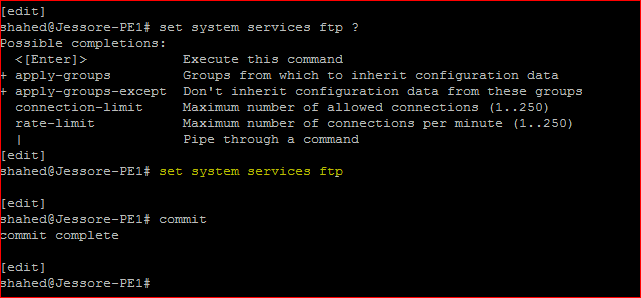
Juniper Remote Access Configuration Enable FTP service

Enable Telent Service:

[edit]
shahed@Jessore-PE1# set system services telnet ?
Possible completions:
  <[Enter]>            Execute this command
+ apply-groups         Groups from which to inherit configuration data
+ apply-groups-except  Don’t inherit configuration data from these groups
  connection-limit     Maximum number of allowed connections (1..250)
  rate-limit           Maximum number of connections per minute (1..250)
  |                    Pipe through a command
[edit]
shahed@Jessore-PE1# set system services telnet

Read more

All useful commit command Juniper router

All useful commit command Juniper router

Today i will discuss about all useful commit command Juniper router, which are used in different purpose.

[boxads]

The Junos candidate configuration file is only the “proposed” configuration; your device does not use any of this configuration until you activate this candidate configuration using the commit command.

When you have definitely made all your changes, done all your checks, and are ready to make your candidate the active configuration running the device, enter the commit command:

To activate any configuration you must type commit. Otherwise the configuration will be not execute. Below describe the type of commit operation:

Example:

Use commit to activate configuration changes:

[edit]
shahed@Jessore-PE1# commit
commit complete

As part of the commit process, Junos checks basic syntax and semantics. For example, the software makes sure that a policy has been defined before it is referenced. If any syntax or semantic problems are found, the commit command returns an error:

You must fix all mistakes before the candidate (or any part of the candidate) can become active. When the activation is done, you see the commit complete message.

If multiple REs are installed, use commit synchronize

[edit]
shahed@Jessore-PE1# commit synchronize
commit complete

Use commit check to confirm syntax:

[edit]
shahed@Jessore-PE1# commit check
configuration check succeeds

Read more

Juniper root password Recovery procedure

Juniper root password Recovery procedure

Today i will discuss how to recover Juniper root password/Juniper root password Recovery procedure . It would be one of most extremely important experience to all who work with Juniper when one comes to set up either lost or forgotten password in Juniper EX Series Switches. Here, I am going to show the process for How to reset lost root password in Juniper EX Series Switch. The lost password can only be reset and recovered with console access of Switch. So, before going to actual activity, console cable is mandatory.

[boxads]

And the same process can be follow for  the SRX and J Series device’s as well.

Firstly I am going to describe steps and then show details log of reset/recovering root password.

Follow the steps to rest lost root password in Juniper EX Series Switch

  • Connect the console cable from management system to Switch console port
  • Use the terminal emulation application such as TERA TERM, Xshell, PuTTY, and Microsoft Windows HyperTerminal.
  •  Configure the Serial port (COM) settings as below:

Read more

Juniper Show Configuration display set command

Juniper Show Configuration display set command

Today i will discuss how to use Juniper Show Configuration display set command. You have a copy of a JUNOS router configuration or you need to duplicate a router configuration on another router and you want to know the commands to use to create the configuration.

[boxads]

Use the following command to list the commands for creating a configuration:

shahed@Jessore-CE1> show | display set

The show | display set command is a handy way to reverse-engineer a router configuration when you are trying to duplicate portions of a configuration on many routers or when you need to write up configuration, monitoring, or troubleshooting procedures for your network operations staff. This command is especially useful if the configuration is complex and when setting it up involves many long commands and lots of typing.

Read more